Using WASD To
Control Your Camera In Blender By Neil Blevins Created On: June 7th 2026 Updated On: June 23rd 2026 Software: Blender
When creating an animated film, how you move your camera is
tremendously important. This short tutorial shows the main ways to go
about navigating your scene camera inside of Blender, including the
sometimes overlooked WASD method.
Real World Motion Picture Camera
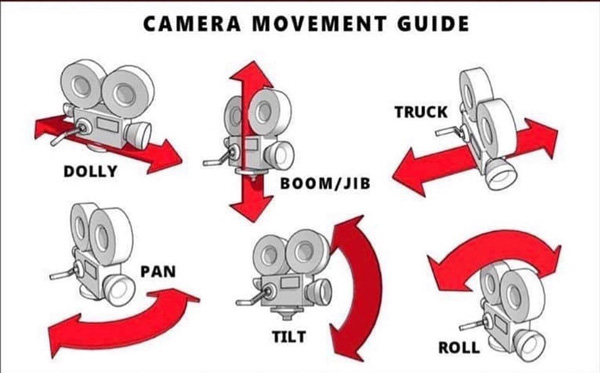
This is a pretty famous graphic showing the proper names for
traditional motion picture camera moves. Digital cameras in 3d software
have slightly different controls, but it's still important to
understand these traditional terms.
Standard Navigation
The most common way to navigate your 3d scene, both in cameras and the
viewport, is using a combination of Mouse and Keyboard shortcuts. The
controls in Blender for doing this are pretty similar to other 3d
packages such as 3dsmax or Maya.
In Blender:
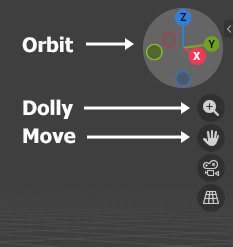
Orbit is middle mouse button
Dolly is ctrl middle mouse button
Move (Boom and Truck) is shift middle mouse button
As comparison, here's 3dsmax's mouse and keyboard shortcuts for the
same thing.
In 3dsmax:
Orbit is alt middle mouse button
Dolly is middle mouse wheel
Move (Boom and Truck) is middle mouse button
Note on Orbit in Blender: When orbiting, it will orbit around a point.
You can redefine that point it orbits around in several ways, but one
of the most common is to select an object, hit the . key on the number
pad, or go to View > Frame Selected, it will now frame that
particular object, and now when you orbit it uses that selected object
as the point you're orbiting around.
Interface Controls
Another way to navigate around with your camera is using the controls
in the upper right of the viewport. If you do not have access to a
mouse (say you're on a mouseless laptop and you find the trackpad
cumbersome), use the following 3 controls, and they can do everything
the keyboard / mouse combo can do.
Object Properties
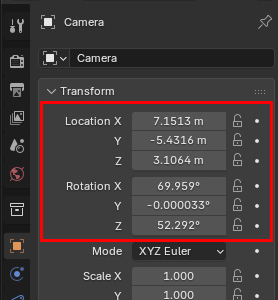
For this method, select the camera you
want to change, and use the 3 controls for Location and Rotation in
Object Properties. Note that Rotation X, Y and Z correspond to Tilt,
Roll and Pan of a real camera, with the pivot point of your camera
defined at the base of the camera.
Transform Gizmo
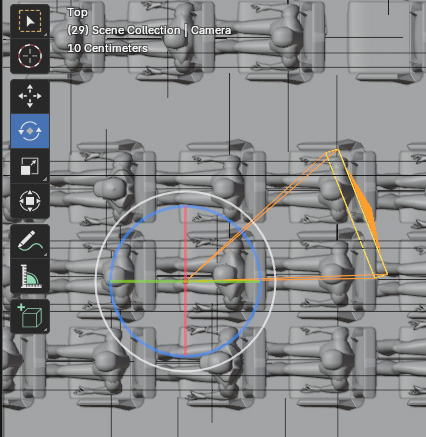
Select the camera you want to move, then hit the Move or rotate buttons
on the left. These are pretty much identical to the Object Properties
method.
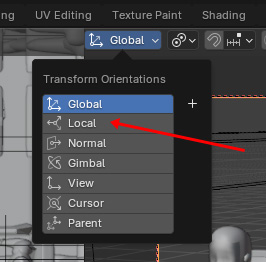
You'll probably notice a big issue right off the bat. This affects the
object's position in world space, not the space local to the camera. So
if you want to do a camera move like for example a Dolly, you'll need
to change the Transform Orientation from Global To Local.
WASD
Now we finally come to WASD mode. To get into this mode, press Shift
and ~, or View > Navigation > Walk Navigation. A little cheat
sheet comes up at the bottom of the screen:
Here's the main WASD keyboard controls:
A and D is Truck
W and S is Dolly
E and Q is Boom
Mouse is Pan and Tilt
You can do Roll using Shift and numberpad 4 or 6. This rolls
around the middle of your view, instead of the camera pivot point.
It also has other helpful controls, for example the acceleration, which
lets you more easily control the speed of how fast the camera moves
when you press a button.
For anyone who's played a first person perspective videogame on a
computer using a keyboard, this form of navigation should seem very
familiar. I got used to these controls back when I played ID software's
Doom in the 90s.
In some ways, this may be the best method for controlling your camera,
as it most closely resembles how a real world motion picture camera
functions.
Another bonus. So when I was teaching high school students, I focused
on the Standard Navigation method over WASD, and I realized at the end
that might have been a mistake. As a GenXers, first person shooters and
3d software came on the market at about the same time in the 90s, so I
learned both navigation methods simultaneously, and so I was adept at
both. But for GenZ, they have played first person videogames (like
Minecraft) since almost birth, and so they are far more familiar with
WASD type controls. So teaching them this method for navigation first
might actually be a good idea, it's more comfortable for them and also,
as mentioned, more aligned with real world motion picture camera
manipulation.