Simple Character Rigging In
Blender By Neil Blevins Created On: Feb 5th 2026 Updated On: June 6th 2026 Software: Blender
Blender has many tools for rigging, skining, posing and animating your
characters for both animations and still images. Here's a quick
walkthrough of how to rig a character in Blender, a more detailed video
will be forthcoming.
Simple Rigid Forward Kinematics
Create FK (Forwards Kinematics)
Rig
Edit > Preferences > Add-ons > Rigify (check the
checkbox)
Add > Armature > Rigify Meta-Rigs > Human (or Basic >
Basic Human if you don’t need a face)
rotate mesh to match the orientation of the rig
Select rig in outliner
scale the rig to match your character
Edit mode
delete the bones you don't need (like the face for example, or
fingers)
go to side panel, under tool tab, check x axis mirror
move the bones to match the geometry
Attaching Character To FK Rig
(Rigid)
Use this if you want to attach your character to the rig in a
rigid way (example: your character is a robot)
Object Mode
select rig
Pose Mode
choose bone you want to attach to
Object Mode
select mesh (or meshes), ctrl select rig
ctrl-P > Bone
This parents your object to the bone of the rig. Repeat for all
bones and objects.
Posing With FK Rig
(Rigid)
Object Mode
Select Rig
Pose Mode
try posing the model by rotating a bone
If you want to pose the bones while in Solid or
Rendered Viewport Shading instead of wireframe, select the rig in the
Outliner, go to Data properties, go to Viewport Display, check "In
Front". Now you will always be able to see and select your bones over
your shaded mesh.
Animate
Pose Mode
select rig
select a bone, hit I to create keyframe
move to different keyframe, move, rotate or scale bone, hit I to
make a new keyframe
Deforming
Attaching Character To FK Rig
(Deformation)
Use this if you want your rig to deform your mesh
Object Mode
select mesh (or meshes), ctrl select rig last
ctrl-P > Armature Deform With Automatic Weights
This attaches your mesh(es) to the FK Rig with deformations.
Posing With FK Rig
(Deformation)
Object Mode
Select Rig
Pose Mode
try posing the model by rotating a bone
If you want to pose the bones while in Solid or
Rendered Viewport Shading instead of wireframe, select the rig in the
Outliner, go to Data properties, go to Viewport Display, check "In
Front". Now you will always be able to see and select your bones over
your shaded mesh.
If you've chosen to deform your mesh, you may notice some parts
of your mesh deform when they shouldn’t. This is fixed with Painting
better weights
Paint Weights
(Deformation)
Object Mode
select the rig, Ctrl select mesh you want to paint weights for
Weight Paint Mode
Alt click the bone you want to see / change the influence of
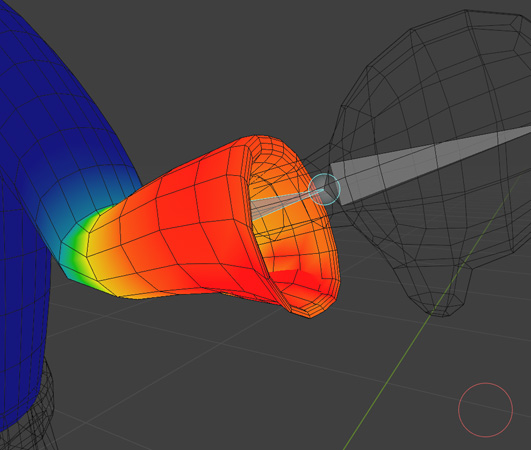
The Influence a bone has on a particular mesh appears as a color
gradient. Black = no influence, Blue = low influence, Green = medium
influence, Yellow = lots of influence, Red = maximum influence.
Open the Tool menu on the right side of viewport
Options > Auto Normalize, when you add weight to a bone, it
automatically removes it from the other bones
Brush Settings > Falloff > Falloff Shape to Projected
Brush Settings > Advanced > Front Faces Only (uncheck).
The previous two features will let you paint right through your
mesh.
F key changes Brush Size
Change Weight in the toolbar on the top of the viewport to paint
more or less influence.
You can also use symmetry mode on the right of the upper viewport
to duplicate the same weights to the other side.
Anytime you want to test your weights, do the instructions above
in Posing With FK Rig
Inverse Kinematics
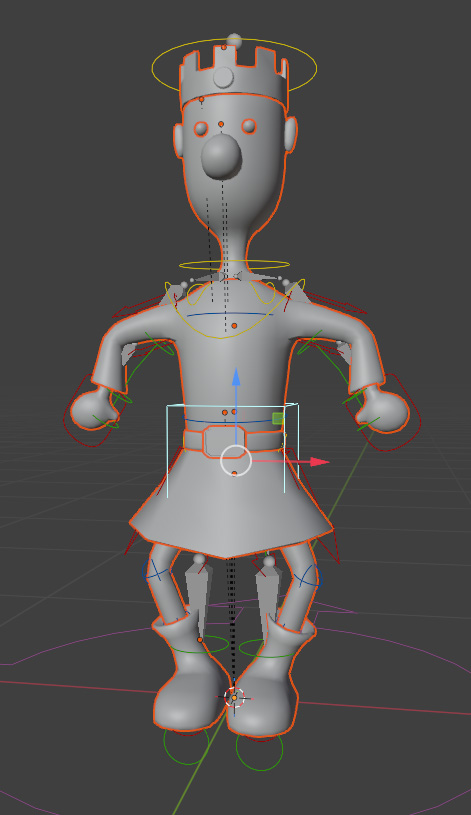
Create IK (Inverse Kinematics) Rig
Object Mode
select rig, go to data properties tab
press "Generate Rig" button
resize the new rig (IK Rig) rig to match scale of your original
FK Rig
Attaching Character To IK Rig
(Deformation)
select mesh (or meshes), Ctrl select IK rig last
ctrl-P > Armature Deform With Automatic Weights
This attaches your mesh(es) to the IK Rig
Posing With IK Rig
Object Mode
Select IK Rig
Pose Mode
try posing the model by moving a control
If you've chosen to deform your mesh, you may notice some parts
of your mesh deform when they shouldn’t. This is fixed with Painting
better weights.